The Journal
The Journal is where most of Ember happens. It's a plain, quiet editor and a list of your days. Everything else in the app, from a person's page to the Calendar and the Map, is built from what you write here.
The three columns
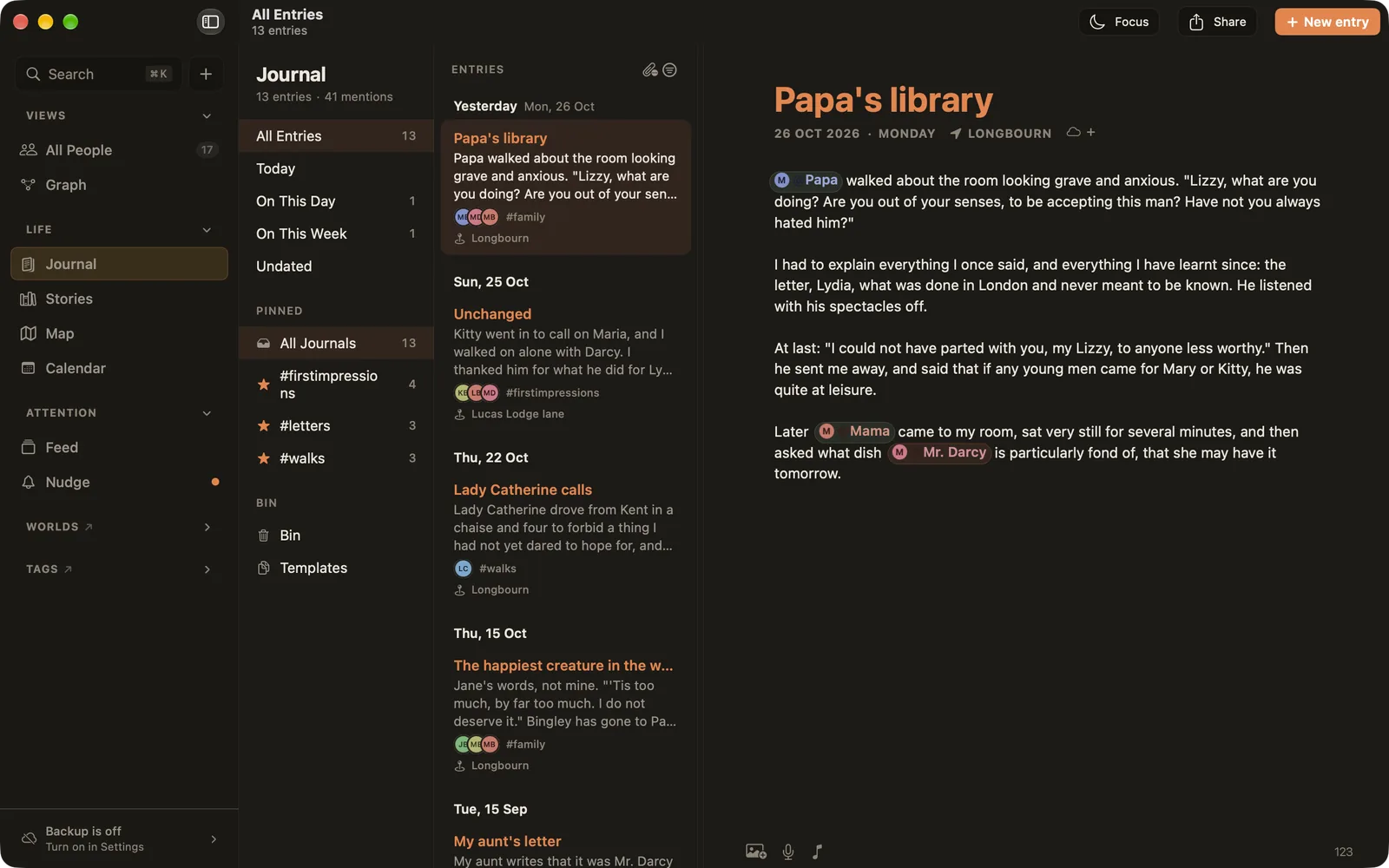
Open the Journal from the sidebar or with ⌘3. On a Mac or iPad it has three columns:
- Views: All Entries, Today, On This Day and On This Week (the same day or week in earlier years), and Undated for entries without a date. Below them are your pinned tags, the Bin and your Templates.
- Entries: your entries by day, newest first, with the people, tags and place of each one.
- The editor: the entry you're reading or writing.
Several journals in one
Pin a tag and it appears under Pinned, where it works like a separate journal: click #work to see only your work entries, or All Journals to see everything. Pin or unpin a tag with the star on the Tags page. Entries imported from Day One keep their journal as a tag, so your old journals come across this way.
Writing an entry
Click New entry or press ⌘⇧J. Type a title, press Return, and write. Ember saves as you go. The editor understands light formatting such as headings, lists and quotes, and the bottom bar adds photos, voice memos and songs.
Mentions and links
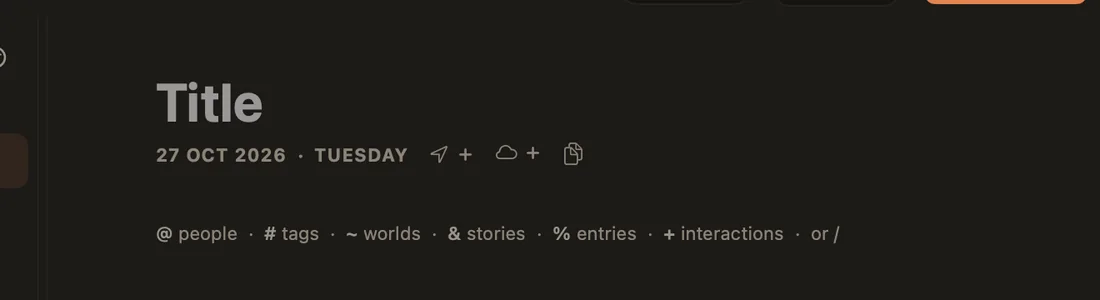
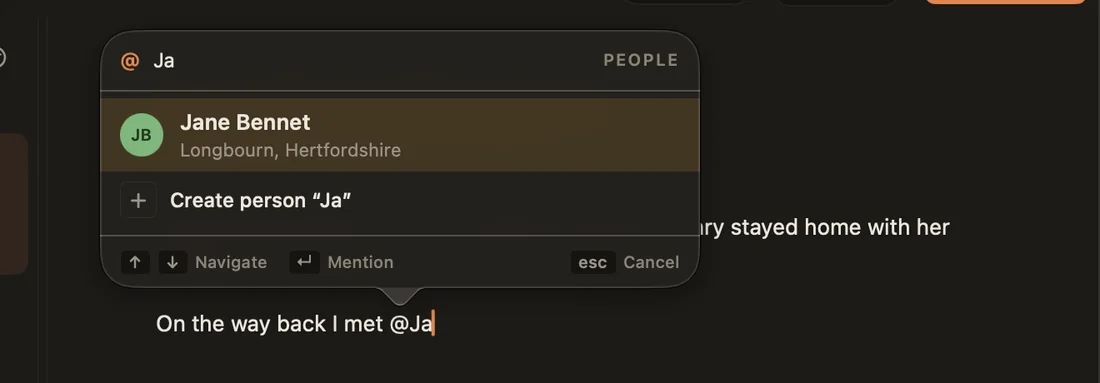
Six characters turn into links while you write. Type one, then a few letters, and pick from the list with the arrow keys and Return:
| Type | To link | What happens |
|---|---|---|
@ | a person | The entry appears on their page and counts as contact with them. |
# | a tag | The entry is filed under that tag. |
~ | a world | The entry belongs to that world and shows on its page. |
& | a story | Links the entry to a story you share. |
% | another entry | Links to a past entry, so you can jump back to it. |
+ | an interaction | Links to a moment you logged. |
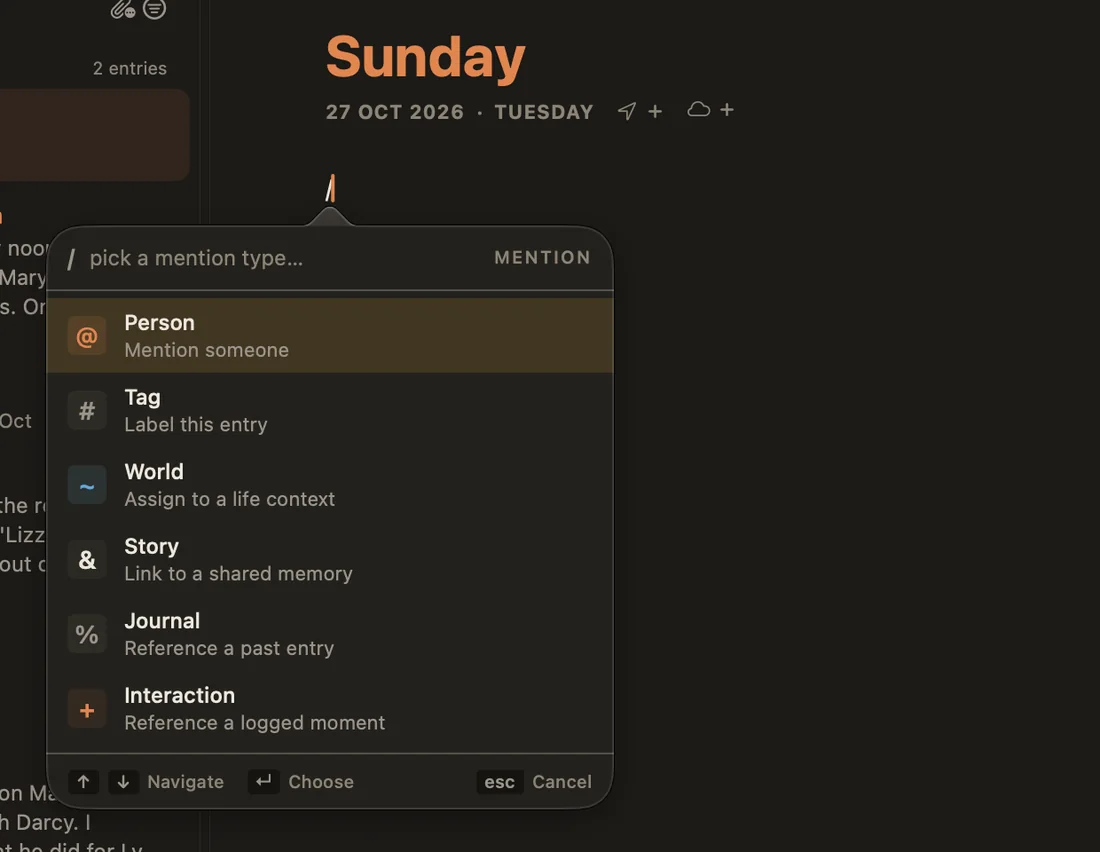
Can't remember which is which? Type / for a menu of all six.
@ stays plain text until you link it, for example with Find People in Journal.The date line: date, place and weather
Under the title is the entry's date, then two small buttons:
- Date: click it to move the entry to another day, or remove the date to make it undated.
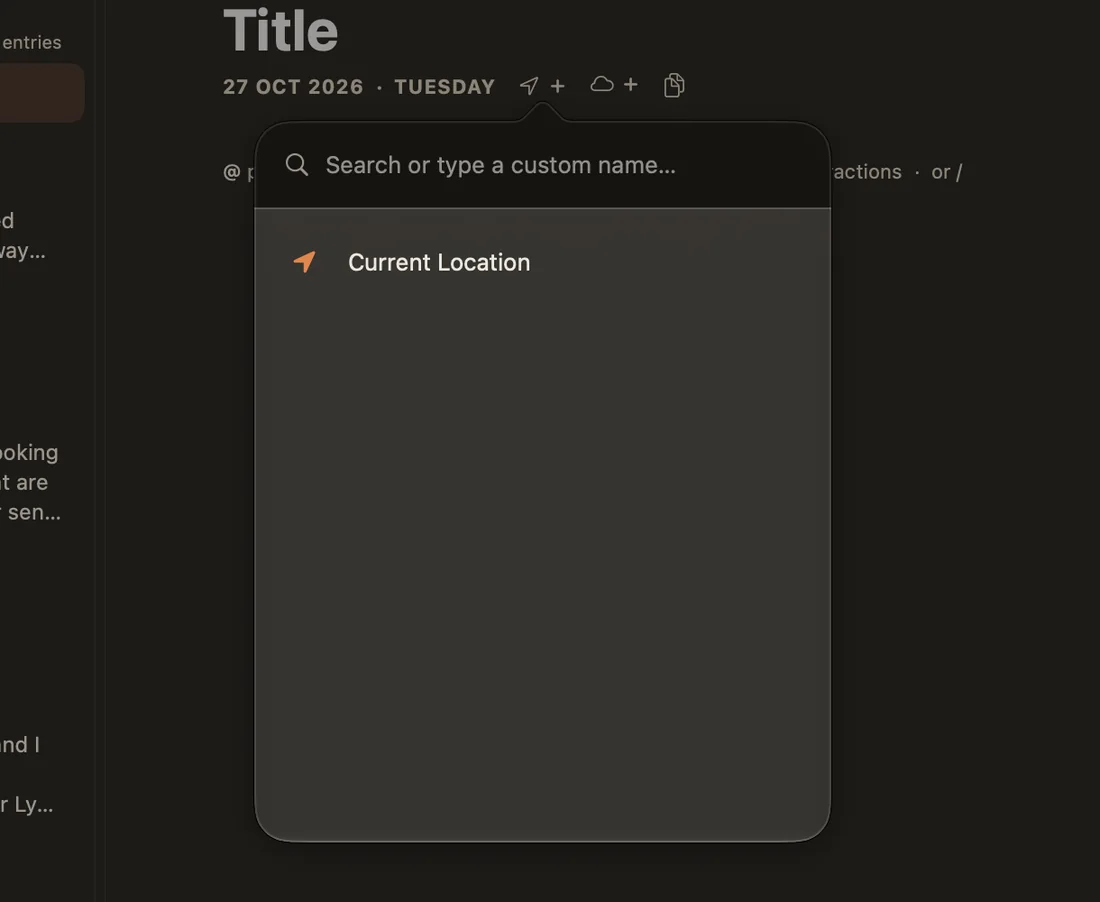
- Place (the arrow): search for a place, type a name of your own, or use your current location. Places put the entry on the Map. Ember never adds a place by itself.
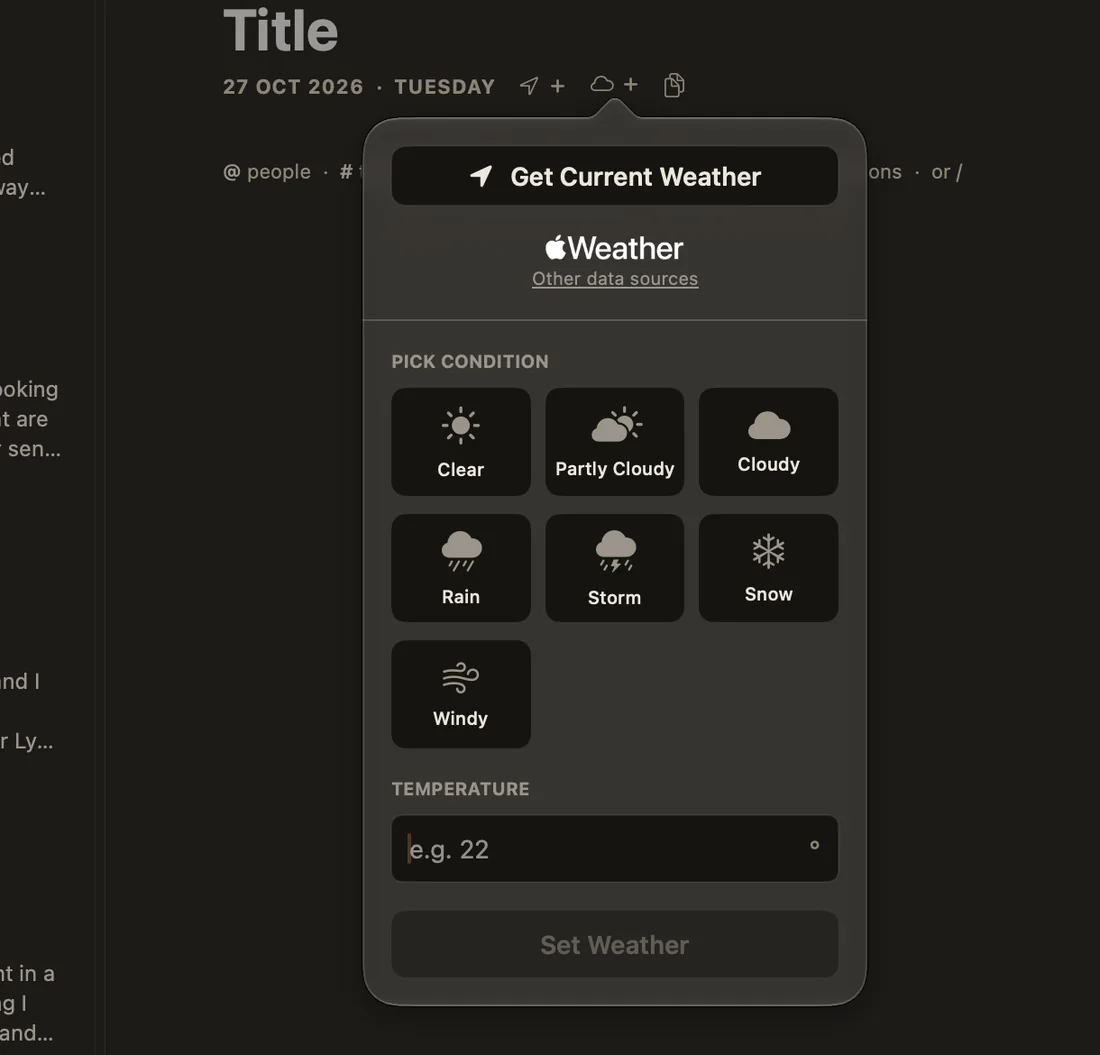
- Weather (the cloud): pick a condition and a temperature, or choose Get Current Weather.
- Templates: on a blank entry, a third icon starts it from one of your templates.
The entry menu
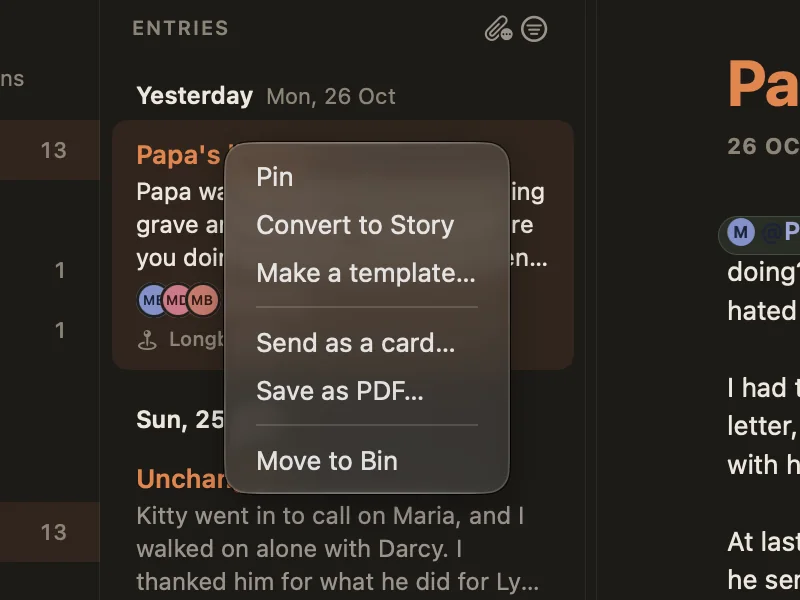
Right-click an entry in the list (long-press on iPhone and iPad) for more:
- Pin: keep it at the top of the list.
- Convert to Story: turn the entry into a story.
- Make a template…: save a copy as a template. The entry stays as it is.
- Send as a card… and Save as PDF…: see Sharing & Keepsakes.
- Move to Bin.
Filtering the list
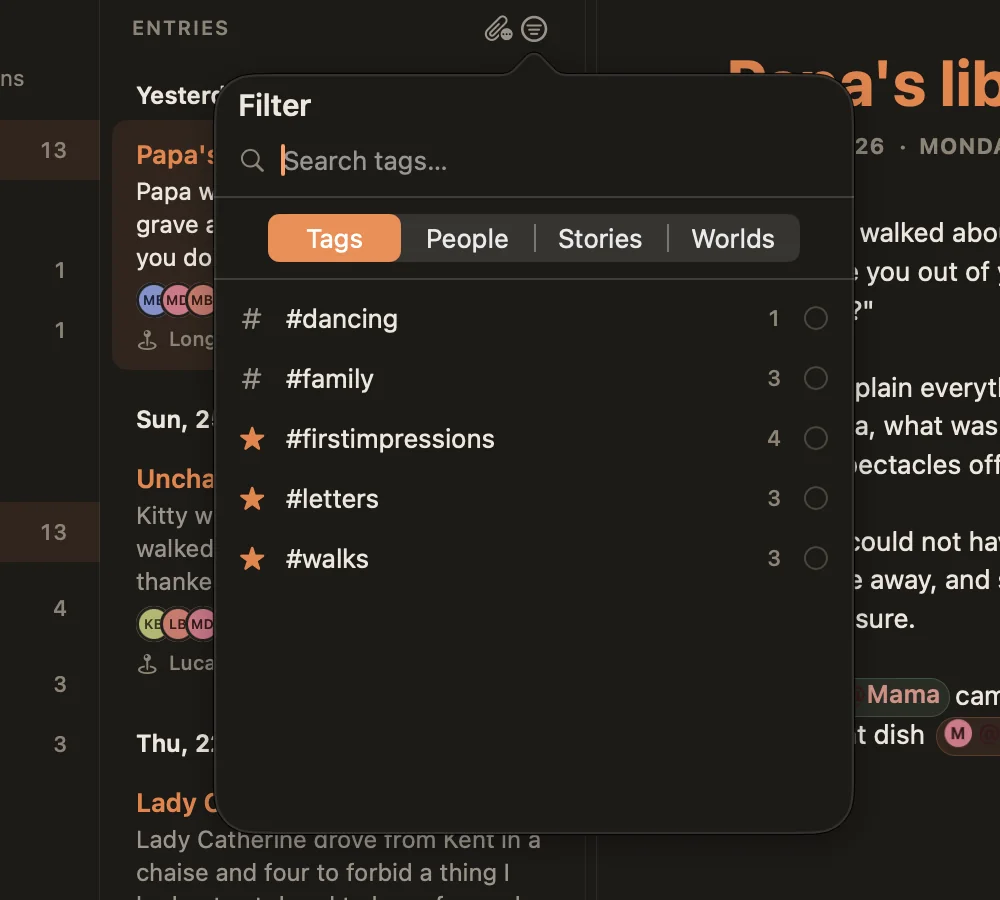
The two icons above the entry list filter what you see. The paperclip includes or hides attached entries: the longer notes you wrote from a person's page, a how-we-met story, or a logged interaction. The filter icon narrows the list by Tags, People, Stories or Worlds. Choose several to combine them.
For anything more specific, such as "rainy Sundays with Sam in 2019", use search.
Focus mode and text size
- Focus (top right, or ⌘⇧F) hides the sidebar and lists so only your writing is left. Press it again to come back.
- ⌘= and ⌘− make the editor's text bigger or smaller, and ⌘0 resets it. This changes the writing only, not the rest of the app. You can set it in Settings ▸ Typography too.
The Bin
Deleted entries go to the Bin, under the views. Open it to Restore an entry or Delete Permanently. Empty clears the whole Bin. An entry in the Bin keeps its links to people, tags and stories, so restoring it brings everything back as it was.