Stories
A journal entry is one day. A story is a chapter: the summer you moved, a friend's wedding, the year your father was ill. Stories hold the people, places and photos of that chapter in one place, and they're the things you'll most want to read again, or hand to someone else.
The Stories page
Open Stories from the sidebar or with ⌘4. Open chapters, the stories still unfolding, are at the top. Closed chapters, whole and finished, are below.
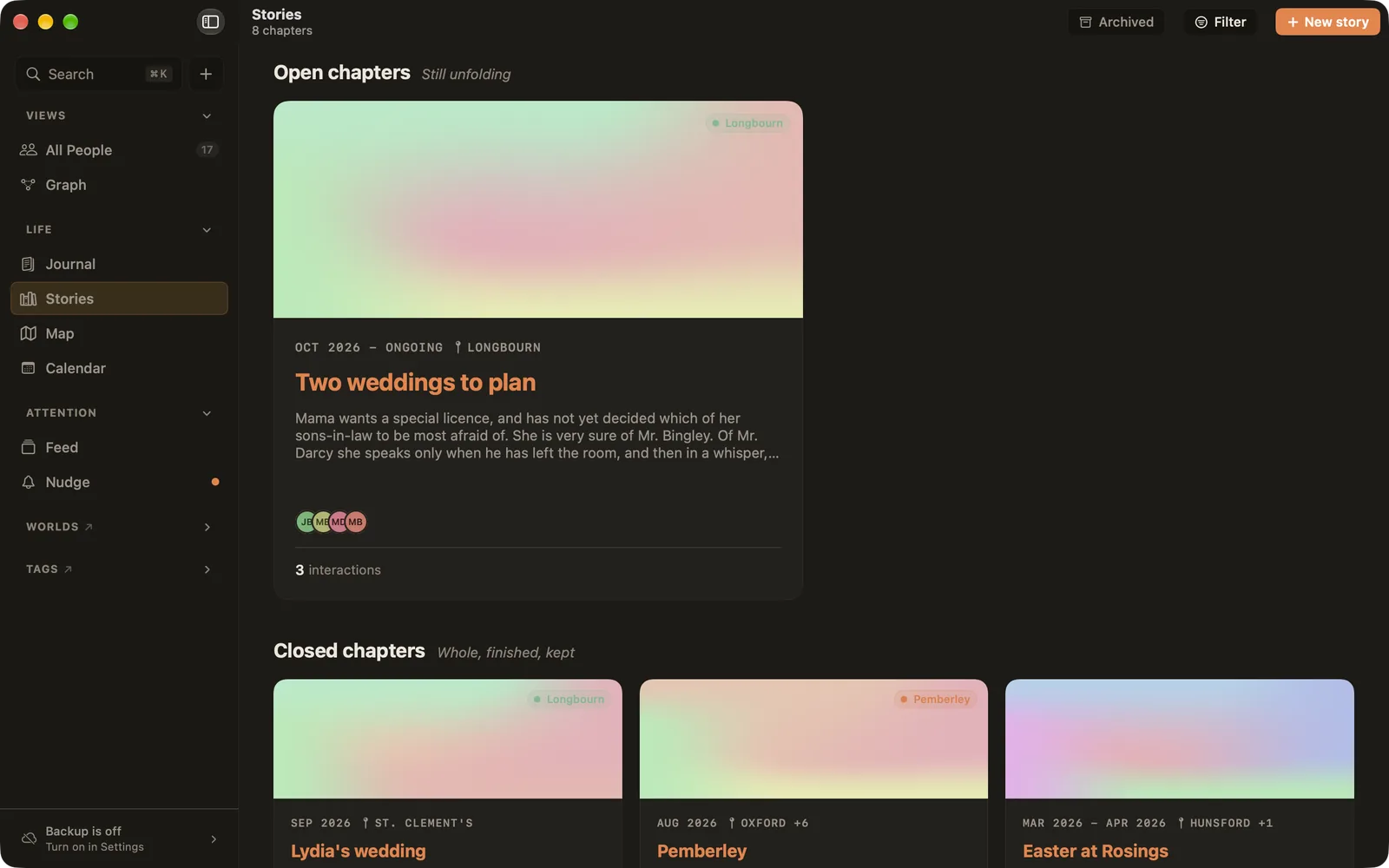
Use Filter to show one world, person or tag, Show map to see where your stories happened, and Archived for stories you've put away.
Starting a story
- Choose New story or press ⌘⇧S.
- Turn an entry into a story: right-click it in the Journal and choose Convert to Story.
- Type
&and a new name in any entry to start one from there.
A story's page

- Cover: a soft gradient in the colours of its world, or a photo. Use the photo button on the cover to set one; after that it offers Replace Cover… and Remove Cover.
- Dates: when it started, and when it ended. Leave the end open while it's still going: an ongoing story shows Ongoing.
- Places: where it happened. A trip can have several places, and places from linked entries are suggested.
- The text: write it like an entry, with
@for people,#for tags, photos, voice memos and songs. - In this chapter: the side panel lists the people, images and tags in the story. Click a person to jump to where they're first mentioned.
A story counts as contact with everyone in it: its last day, or the day it began while it's ongoing.
Linking entries to a story
Most stories are lived one day at a time. Write your daily entries as usual, and type & and the story's name to link an entry to it. The story keeps track of every entry that mentions it, and when you save the story as a PDF, you can add those entries at the end.
Sharing a story
Choose Share at the top of a story for Send as a card… and Save as PDF…. A card is a single picture of the story to send to the people in it. A PDF sets it like a small book, with a cover page and your photos.

More in Sharing & Keepsakes.
Archiving and deleting
Deleting a story moves it to Archived, at the top of the Stories page, where you can restore it. Delete Permanently removes it with its photos. The people in it stay; they just lose the link to the story.