Sync & Backup
Ember can keep your journal in step across your Mac, iPhone and iPad using your own iCloud account, no Ember servers in between. Sync is part of Ember Plus.
How sync works
When sync is on, your data flows directly between your devices and your personal iCloud account, through Apple's CloudKit. There is no Ember-operated server and no account to create: your Apple ID is the account. We have no ability to read or decrypt your synced data.
Turning on sync
- Subscribe to Ember Plus (monthly, yearly, or lifetime).
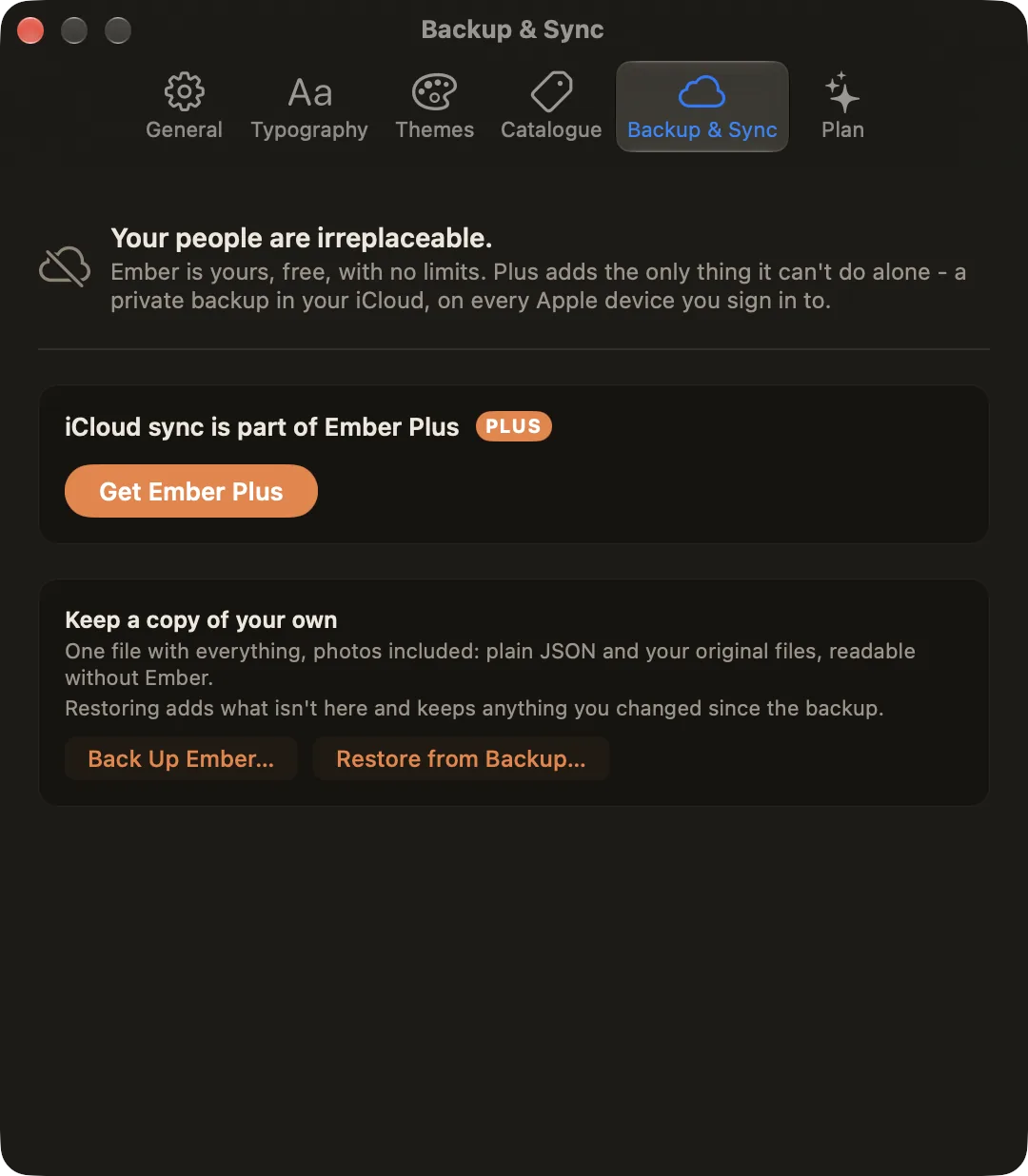
- Open Settings → Backup & Sync and turn iCloud sync on.
- Make sure you're signed in to the same iCloud account on every device you want in sync.
Changes flow automatically from then on. If you turn sync off and later back on, Ember re-checks everything so nothing edited in the meantime is missed.
What syncs, and what doesn't
Your journal entries, people, stories, interactions, worlds, tags, connections, and media all sync. The one thing that stays local is your graph layout (where you've dragged each node), because a 13″ laptop and a large desktop want different arrangements. See the Graph guide.
If something doesn't sync
Check the status at the bottom of the sidebar first. For setup checks, what each status means, size limits, and how to send us logs, see Sync Troubleshooting. If the same entry was edited on two devices at once, see Conflicted Entries.
Backup vs. sync
Sync keeps your devices in agreement; it is not the same as a backup you control. For a portable, independent copy, choose Back Up Ember… (in the File menu, or Settings ▸ Backup & Sync): one file with everything, photos included, as plain JSON and your original files. Keep it anywhere and restore it at any time. Backups are free, with or without a subscription. See Import & Export.
If your subscription lapses
Your data is always yours. If Plus lapses, sync stops but every entry stays on your device, fully readable, and you can still export everything. Resubscribe and sync picks up again.