Themes & Appearance
Ember should feel like your own room. Choose light or dark, a theme, and the type you like to write in.
Themes
Open Settings ▸ Themes. Each theme is a complete palette, not just a different accent colour, and the whole app changes at once, widgets included.
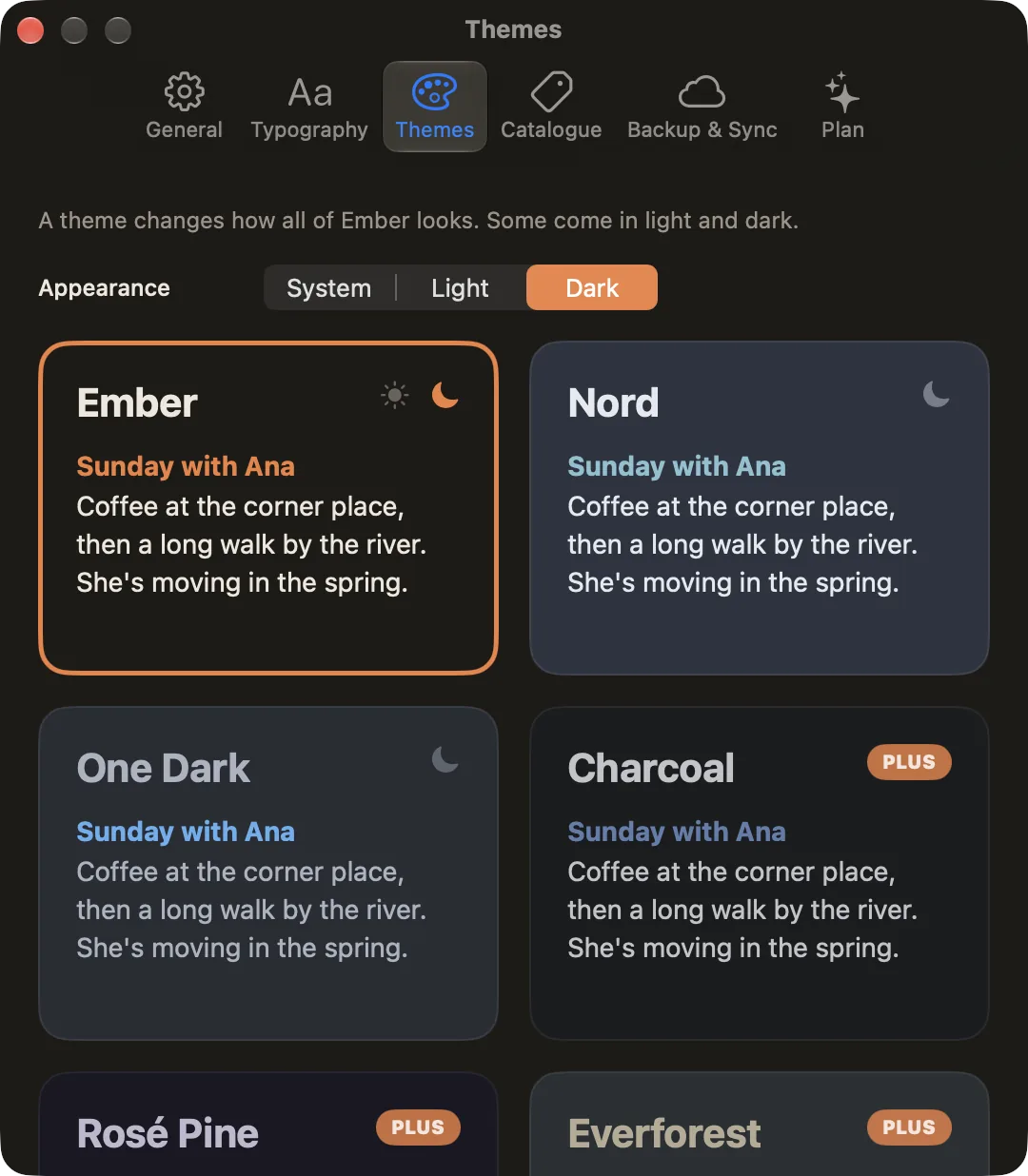
| Included with Ember | With Ember Plus |
|---|---|
| Ember, Nord, One Dark | Charcoal, Rosé Pine, Everforest, Tokyo Night, Dracula, Gruvbox, Solarized Dark, Catppuccin Mocha, Ayu Mirage, Night Owl |
Light and dark
At the top of the Themes tab, choose System to follow your device, or Light or Dark to keep one. Ember, Rosé Pine and Everforest each come in a light and a dark version, and switch between them. The other themes are dark.
Typeface and spacing
In Settings ▸ Typography:
- Typeface: System, Serif, Rounded or Mono.
- Editor text size: how big your writing is in the journal and story editors.
- Line spacing: how much room between lines.
The preview at the top shows the result as you go. Reset to defaults puts everything back.
Text size
- While you write: ⌘= and ⌘− change the editor's text size, and ⌘0 resets it. It's the same setting as Editor text size, and only changes your writing.
- iPhone and iPad: the rest of the app follows your device's text size, in Settings ▸ Display & Brightness ▸ Text Size (or Accessibility ▸ Larger Text).